
HYTALE Skin Gallery
Browse custom character skins created by the Hytale community. Preview in 3D and download your favorites.
Hytale Skin Gallery
Showing 1 - 10 of 124 skins
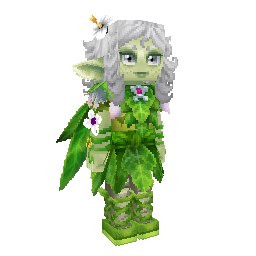
PearlescentMoon
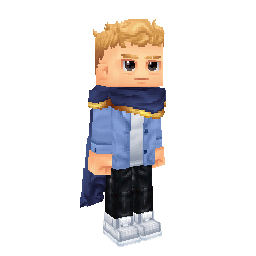
SolidarityGaming
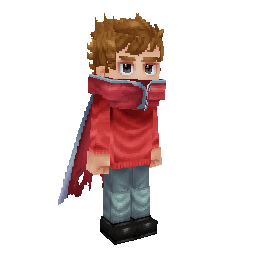
Grian
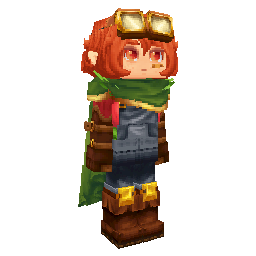
Shubble
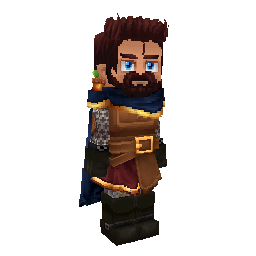
Seapeekay
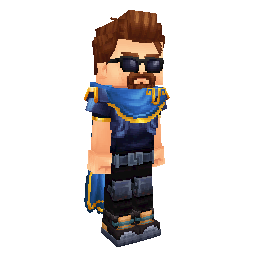
Quig
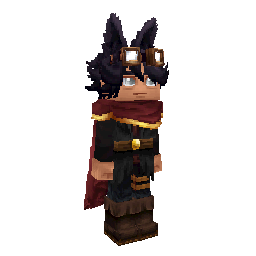
BadBoyHalo
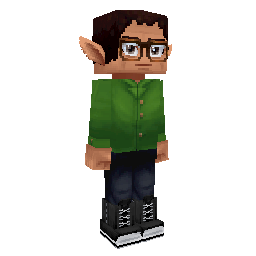
JeanBlock
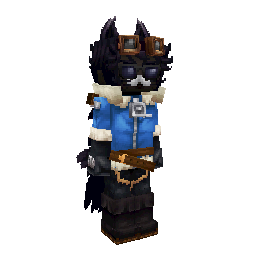
SpreenDMC
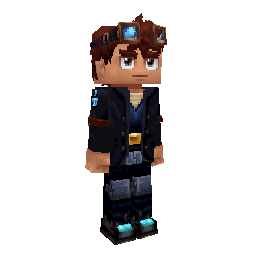
DanTDM
Quick guide
How to Use the Hytale Skin Gallery
Browse and sort skins
Use the sort tabs — Top, Latest, Random and Trending — to reorder the gallery of community-made Hytale character skins.
Open a skin
Click any skin card to open its detail page with a full preview, the list of skin components, and view and download counts.
Preview in 3D and download
On a skin page, rotate the 3D character model, then download the GLB model or the raw PNG texture file.
Upload your own skin
Sign in to AlaHytale and use the Upload Skin page to submit your own PNG texture. It joins the gallery once a moderator approves it.
Good to know
Newly uploaded skins pass through moderation before they appear in the Hytale Skin Gallery, so a fresh upload may not be visible right away.